
NomadJourney

Exploring culture, tech, food, and the stories that connect us all.

Code Hub Software & Apps

How to Connect Android Studio to Bluestacks (2025 Guide) — The Easiest Way to Test Your Apps Faster!

Android Studio connected to Bluestacks via ADB bridge illustration

Developing Android apps is exciting — but running them on a slow emulator can be frustrating. If you’re tired of waiting for the Android Studio emulator to load, then this guide on how to connect Android Studio to Bluestacks will save your time and energy.

Bluestacks is one of the fastest Android emulators available for Windows and macOS, allowing you to test, debug, and run Android apps seamlessly. By linking Bluestacks with Android Studio, you can experience real-time performance and smoother app testing.

Why Connect Android Studio to Bluestacks?

Android Studio comes with a built-in emulator called the Android Virtual Device (AVD). While useful, it can be resource-heavy and slow on some computers. Bluestacks, on the other hand, is optimized for performance and feels closer to a real device experience.

  • Run apps instantly without waiting for AVD to boot.
  • Enjoy better FPS and smoother animations.
  • Test your app in a real-world gaming or app environment.

What You’ll Need Before You Begin

System Requirements

  • Windows 10/11 (Bluestacks is optimized for Windows)
  • Minimum 8 GB RAM
  • At least 15 GB of free disk space
  • Intel/AMD processor with virtualization enabled (VT)

Tools and Software You’ll Need

  • Android Studio (latest version)
  • Bluestacks 5 or above
  • ADB (Android Debug Bridge) – included in Android SDK platform-tools

Step-by-Step Process to Connect Android Studio to Bluestacks

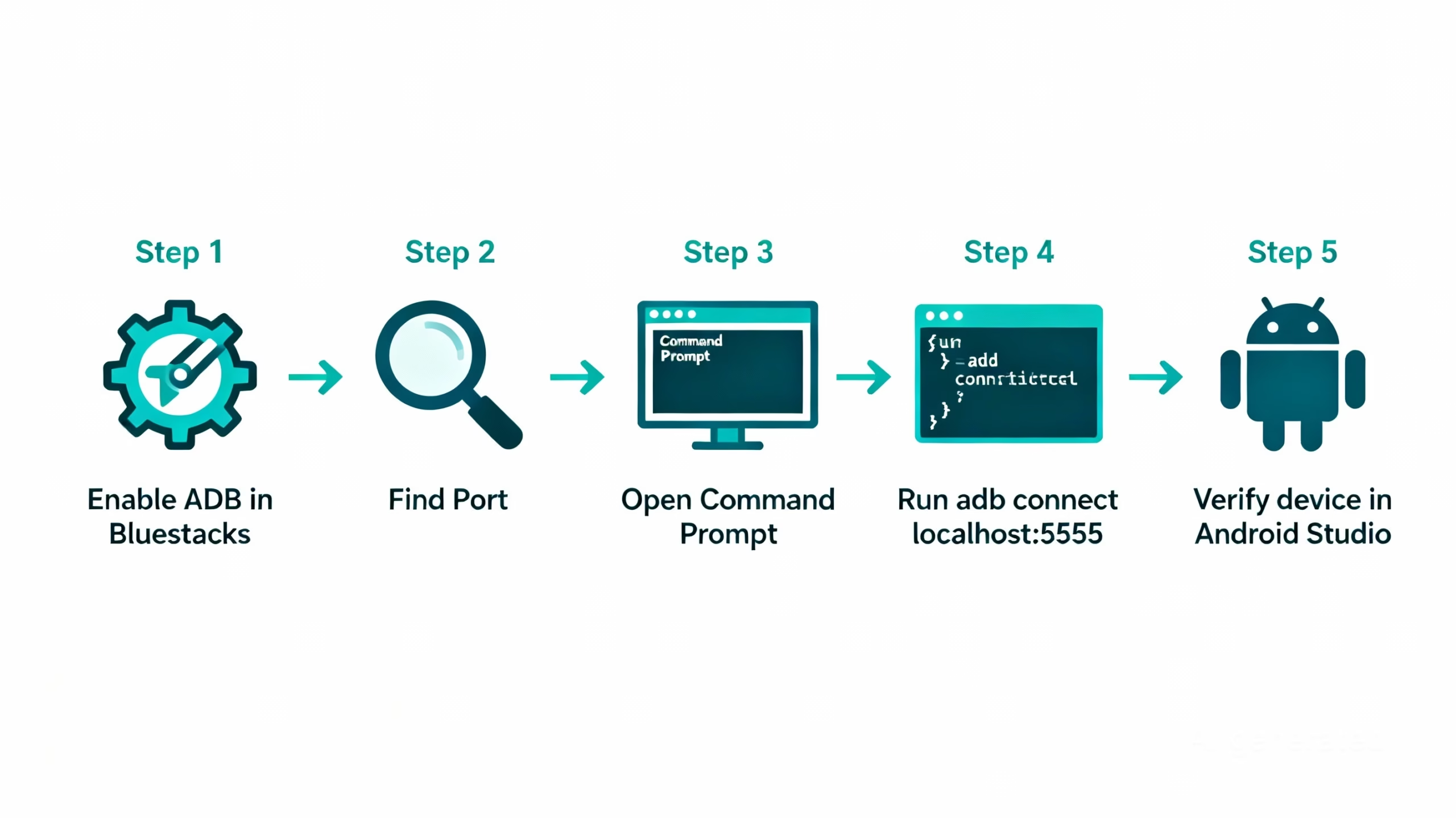
Step 1: Install and Launch Bluestacks

Download Bluestacks from the official website. Install it on your PC, then launch the emulator. Wait until it fully loads before moving to the next step.
How to Connect Android Studio to Bluestacks

Step 2: Enable Android Debug Bridge (ADB) in Bluestacks

  1. Open Bluestacks.
  2. Click the gear icon (Settings).
  3. Go to Advanced → Android Debug Bridge (ADB).
  4. Toggle it ON.
  5. Restart Bluestacks to apply changes.

Step 3: Find the Bluestacks ADB Port Number

By default, Bluestacks listens on port 5555, but it might vary. To check:

  • Open Settings → Advanced → Developer Options inside Bluestacks.
  • Look for “ADB Port Number.”

Alternatively, open a terminal and run:

adb devices

This command will list connected devices and ports.

Step 4: Connect Bluestacks with ADB via Command Prompt

    1. Open Command Prompt and navigate to your Android SDK platform-tools folder:
cd %LocalAppData%\Android\Sdk\platform-tools
    1. Run the following command to connect:
adb connect localhost:5555
    1. Verify connection:
adb devices
    1. You should see:
127.0.0.1:5555  device

Step 5: Verify the Connection in Android Studio

  1. Open Android Studio.
  2. Go to the Run/Debug dropdown menu.
  3. Under “Connected Devices,” you should now see your Bluestacks Emulator.
  4. Select it and hit Run (▶).

Step 6: Run and Test Your App in Bluestacks

Once your app builds, Android Studio will automatically install and launch it inside Bluestacks. You can now interact with your app as if it were running on a real device!

Common Issues and How to Fix Them

ADB Not Recognizing Bluestacks

If adb devices doesn’t list Bluestacks:

adb kill-server
adb start-server
adb connect localhost:5555

Port Mismatch Problems

If Bluestacks runs on a different port, use that port instead:

adb connect 127.0.0.1:port_number

Unauthorized Device Errors

If you see “unauthorized device,” restart ADB and reconnect. Sometimes a reboot of Bluestacks fixes the issue.

Why Use Bluestacks Instead of Android Studio’s Default Emulator

Faster App Launch Times

Bluestacks starts almost instantly, unlike the official AVD, which can take several minutes.

Better UI and Real-World Testing

Bluestacks provides an interface closer to what real users experience, especially for apps that rely on gestures or gaming controls.

Supports Most Android Versions

Bluestacks can simulate multiple Android environments, making it ideal for cross-version testing.

Tips for a Smooth Connection Experience

  • Always start Bluestacks first, then open Android Studio.
  • Keep ADB and SDK tools updated.
  • Use 127.0.0.1 instead of localhost if you face IPv6 issues.
  • Close unnecessary apps to improve emulator performance.

Frequently Asked Questions (FAQs)

1. Does Bluestacks work on macOS?

Yes, but ADB integration may not work as smoothly as on Windows.

2. Can I use multiple devices along with Bluestacks?

Absolutely! Android Studio can list multiple devices (physical and emulated).

3. What if Bluestacks doesn’t appear in Android Studio?

Reconnect using adb connect localhost:5555 and refresh the device list.

4. Is Bluestacks officially supported by Google?

No, but it’s widely used by developers for its speed and convenience.

5. Does using Bluestacks affect app performance testing?

Bluestacks is great for UI testing, though hardware sensors may behave differently than on real devices.

6. Can I debug my app using Logcat?

Yes! Bluestacks supports full Logcat debugging via Android Studio.

Start Testing Your Apps Smarter

Connecting Android Studio to Bluestacks is one of the easiest ways to speed up your Android development workflow. Whether you’re building a mobile game or testing a UI-heavy app, Bluestacks offers performance, convenience, and a near-real user experience.

Now that you know how to connect Android Studio to Bluestacks, you can run, debug, and test your projects faster than ever before!

Read more: How Indian Culture Can Enrich UX Design with Empathy & Soul

External Resources

Leave a Reply

Your email address will not be published. Required fields are marked *